Why Is Your WordPress Website Slow?

Why Is Your WordPress Website Slow? Common Causes and Practical Fixes
You open your website, click a page, and wait for it to load. A few seconds later, the content finally appears.
For a website owner, this may seem like a small inconvenience. For a visitor who wants to find a service, compare products, or submit a form, it can be enough to leave.
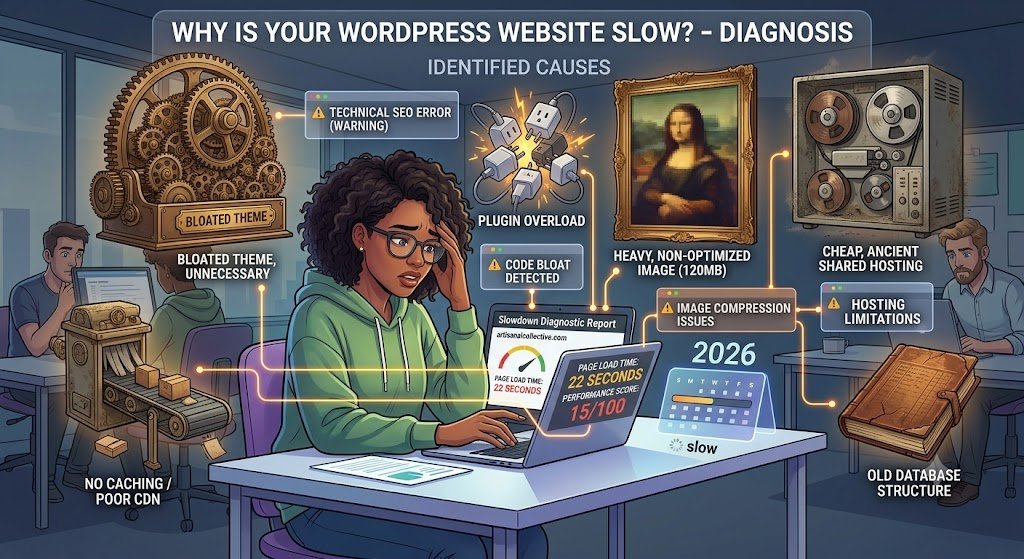
A slow WordPress website can have several causes. Large images, inefficient scripts, unsuitable hosting, excessive plugins, and poor caching configuration can all contribute to performance problems.
The good news is that you do not always need to rebuild your website to improve its speed. The best starting point is to identify what is actually slowing it down.
Why Website Speed Matters
Website performance affects how easily visitors can access information and complete important actions.
A slow page can make browsing frustrating, especially on mobile devices or slower connections. Performance can also influence Google’s page experience assessments, although speed alone does not guarantee higher rankings.
Rather than chasing an arbitrary loading-time target, focus on improving the experience across your most important pages.
1. Large Images Can Slow Down Your Website
Images often account for a significant portion of a page’s downloaded data.
Uploading a very large image and displaying it in a small container can waste bandwidth and increase loading time.
To improve image performance:
- Resize images to suit their actual display dimensions.
- Compress images while maintaining acceptable visual quality.
- Consider WebP or AVIF where supported.
- Avoid loading unnecessarily large background images.
- Use lazy loading for appropriate below-the-fold images.
Be careful with important images visible immediately when a page loads. Delaying the loading of the main hero image can make the page appear slower.
2. Too Many Plugins Can Add Complexity
Plugins make it easy to extend WordPress, but some introduce scripts, styles, database queries, or external requests that affect performance.
Review your installed plugins and identify which ones are genuinely necessary.
Before removing a plugin, check whether your theme or another feature depends on it. Test changes carefully, particularly on websites that use forms, payments, memberships, or custom functionality.
The goal is not simply to use the fewest plugins possible. It is to maintain a suitable set of reliable tools without unnecessary overhead.
3. Hosting Can Affect Performance
Your hosting environment influences how quickly the server can respond to requests.
Performance may suffer when a hosting plan has insufficient resources, the server is poorly configured, or the website receives more traffic than the environment can comfortably handle.
Check your hosting resources, server response times, and provider recommendations before making changes.
A larger hosting plan is not always the first solution. Image optimization, caching, and code improvements may resolve some problems without increasing hosting costs.
4. Enable Appropriate Caching
Caching allows certain page data or generated output to be reused instead of recreated for every request.
Depending on your hosting setup, you may have access to page caching, object caching, browser caching, or a content delivery network.
Choose a caching approach compatible with your website and hosting environment. After making changes, test important pages, forms, shopping carts, and logged-in areas to ensure everything still works correctly.
Be cautious when clearing or changing caches on a live website, particularly if your site relies on dynamic content.
5. Review Heavy Page Builder Layouts
Page builders can make website design easier, but complicated layouts may introduce unnecessary elements and scripts.
If you use Elementor or another page builder, review pages with excessive nested containers, large animation effects, duplicate sections, or unnecessary widgets.
Simplify layouts where possible and avoid loading features that are not being used.
A visually clean page is often easier to maintain, but the actual performance impact should be verified through testing.
6. Reduce Unnecessary Scripts and External Requests
Tracking tools, embedded videos, chat widgets, advertising scripts, and third-party integrations can affect loading performance.
Review which external resources your website loads and whether every one is necessary.
Where appropriate, defer non-critical scripts or delay loading optional features until visitors need them. Make sure these changes do not interfere with analytics, consent requirements, or essential functionality.
7. Test Your WordPress Website Performance
Before changing your website, establish a baseline.
Google PageSpeed Insights provides performance diagnostics for mobile and desktop pages. Google Search Console can also report Core Web Vitals information when enough real-user data is available.
Review the recommendations and prioritize issues with a meaningful effect on visitors.
Test your homepage, important service pages, blog posts, and conversion pages individually. A website may perform well on one page and poorly on another.
After implementing changes, run the tests again and confirm that the improvements are measurable.
Common Website Speed Mistakes
Installing several caching plugins without understanding how they interact can create problems rather than solve them.
Other mistakes include compressing images so heavily that they look poor, delaying essential content, and making multiple changes without measuring the results.
Always test one group of improvements at a time. This makes it easier to identify which changes helped and which caused unexpected issues.
Frequently Asked Questions
Why is my WordPress website slow even with good hosting?
Possible causes include large images, inefficient themes or plugins, heavy scripts, poor caching, and database or server configuration issues. Performance testing can help identify the cause.
Does website speed affect SEO?
Performance contributes to page experience and can be relevant to SEO, but it is only one part of a broader ranking system. Helpful, relevant content remains important.
Which plugin can improve WordPress speed?
The right solution depends on your hosting environment and website. Choose a compatible caching or performance tool, and avoid overlapping plugins that perform the same tasks.
How can I test WordPress website speed?
Start with Google PageSpeed Insights. Test individual important pages on mobile and desktop, review the diagnostics, and repeat the tests after making changes.
Conclusion
A slow WordPress website usually has identifiable causes, and effective optimization starts with measuring performance rather than guessing.
Review images, plugins, hosting, caching, page-builder layouts, and external scripts. Make targeted improvements and test the results.
With a systematic approach, you can make your website easier to use without sacrificing the design or functionality your business needs.