WordPress SEO Checklist: 7 Steps to Rank Higher on Google

You’ve written a great post, hit publish, and then… nothing. No traffic, no clicks, just a page sitting somewhere on page six of Google.
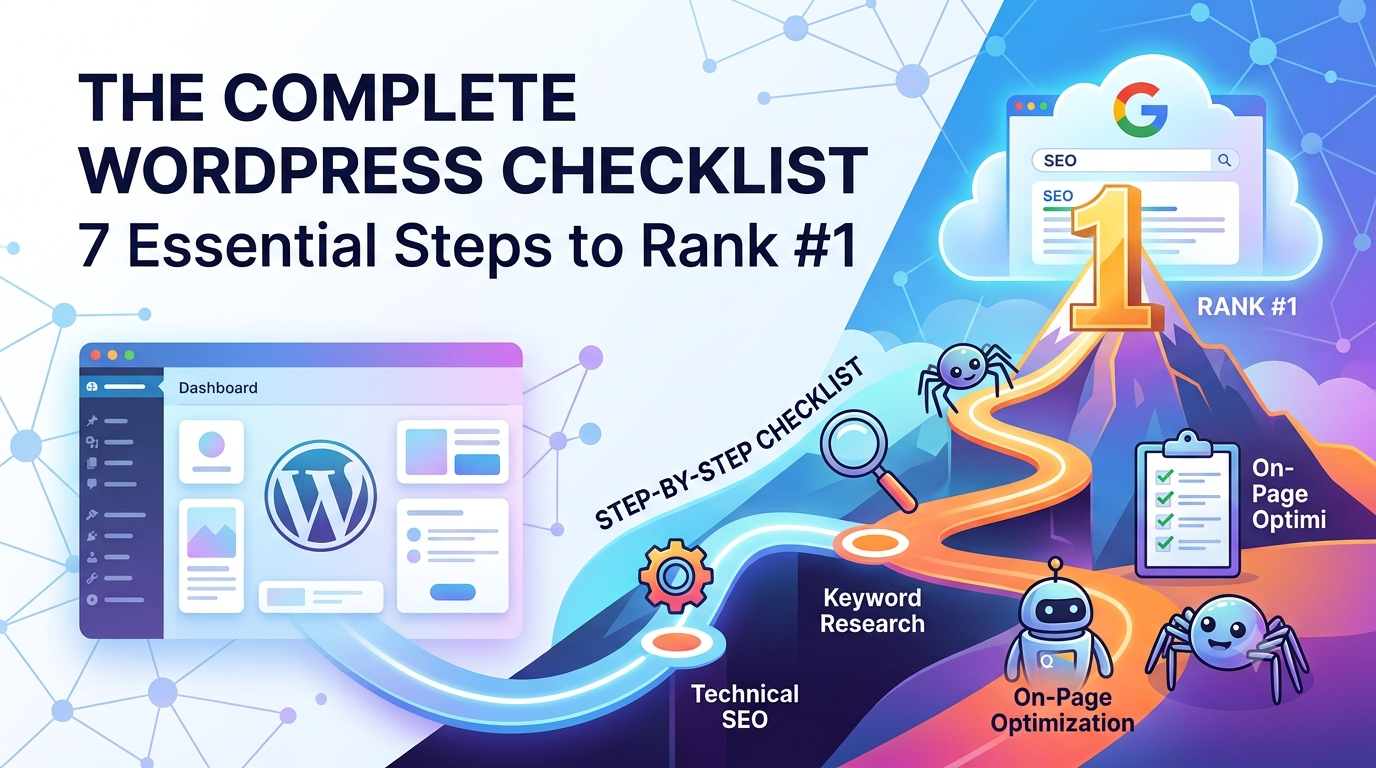
It’s a frustrating spot, and it usually isn’t about content quality. Search engines need help understanding, crawling, and trusting your page. WordPress makes that easier than most platforms, but only if the basics are set up properly. No checklist can promise the #1 spot, but this one covers what actually moves the needle.
1. Install a Dedicated SEO Plugin
WordPress handles the basics on its own, but it won’t manage titles, meta descriptions, and structured data for you. A dedicated plugin does that from inside the editor. Rank Math, Yoast SEO, and All in One SEO (AIOSEO) are the three most popular options, and any of them will do the job. Just pick one and don’t run two at once, because they’ll conflict.
Here’s what a good SEO plugin gives you:
- XML sitemaps that help Google discover your pages
- Title and meta description controls for every post
- Schema markup, which tells search engines whether a page is an article, recipe, product, or something else
- Readability and on-page checks that flag obvious gaps
Treat the plugin’s green lights as a guide, not a goal. A perfect score won’t help if the content itself doesn’t answer the reader’s question.
2. Set Up Clean Permalinks
Out of the box, some WordPress installs use URLs like yoursite.com/?p=123. That tells neither people nor search engines anything about the page.
To fix it:
- Go to Settings → Permalinks in your dashboard.
- Choose Post name.
- Edit each post’s slug so it includes your main keyword, separated by hyphens. For example, yoursite.com/wordpress-seo-checklist/.
One warning: if your site already has published posts, changing the permalink structure changes their URLs. Set up 301 redirects (most SEO plugins can do this) so you don’t lose traffic or break inbound links.
3. Match Your Content to Search Intent
Before you write, ask what the person typing this query actually wants. Google’s job is to satisfy that intent, so your page needs to as well. Most searches fall into one of four types:
| Intent | What the searcher wants | Example query |
|---|---|---|
| Informational | To learn something | “how to speed up WordPress” |
| Commercial | To compare options before buying | “best WordPress hosting 2026” |
| Transactional | To take an action or buy | “buy Elementor Pro” |
| Navigational | To reach a specific site | “WordPress login” |
A quick way to check intent is to search your target keyword and look at what’s already ranking. If the top results are all how-to guides, a sales page won’t crack the list.
Once you know your primary keyword, place it naturally in the title tag, the H1, the first 100 words, and the URL slug. “Naturally” is the key word. Write for people first.
4. Get Your Heading Structure Right
Headings help both readers and crawlers skim your content and understand how it’s organized. Keep it simple:
- H1: your post title, used once. WordPress usually sets this automatically.
- H2: the main sections of the article.
- H3 and H4: subsections nested under an H2.
Don’t skip levels or use headings just to make text bigger. If it isn’t a real section, it shouldn’t be a heading.
5. Compress Images and Write Alt Text
Heavy images are one of the most common reasons WordPress sites feel slow, and slow pages hurt both user experience and Core Web Vitals. Before you upload:
- Format: use WebP, or a well-compressed JPEG
- Size: keep the width at around 1200px or less
- Alt text: describe what’s in the image in plain language, and work in a relevant keyword only where it fits
Alt text exists mainly for screen reader users, so write it for them. “Google Search Console performance report showing clicks and impressions” is helpful. “SEO WordPress best SEO tips” is not.
6. Build Internal and External Links
Links are how crawlers move through your site and how readers find more of your content.
- Internal links: point to a few of your own related posts (three to five is a good rule of thumb) using descriptive anchor text, not “click here.”
- External links: cite reputable sources when you make claims or use data. It builds credibility and shows you’ve done your homework.
7. Track Results with Google Search Console
Publishing isn’t the finish line. Once your post is live, submit the URL in Google Search Console and request indexing. After that, check back regularly for:
- Impressions and clicks: how often you appear and how often people choose you
- Click-through rate (CTR): a low CTR often means your title or description needs work
- Average position: where you rank for each query
- Indexing issues: pages Google couldn’t crawl or chose to skip
Search Console is free, and it’s the closest thing you’ll get to seeing your site the way Google does. Use what you learn to update and improve older posts, not just to publish new ones.
Final Thoughts
SEO rewards consistency more than shortcuts. Set up your plugin and permalinks once, then make intent, structure, images, links, and tracking part of your routine for every post. Do that, and your content stops fighting for attention and starts earning it.