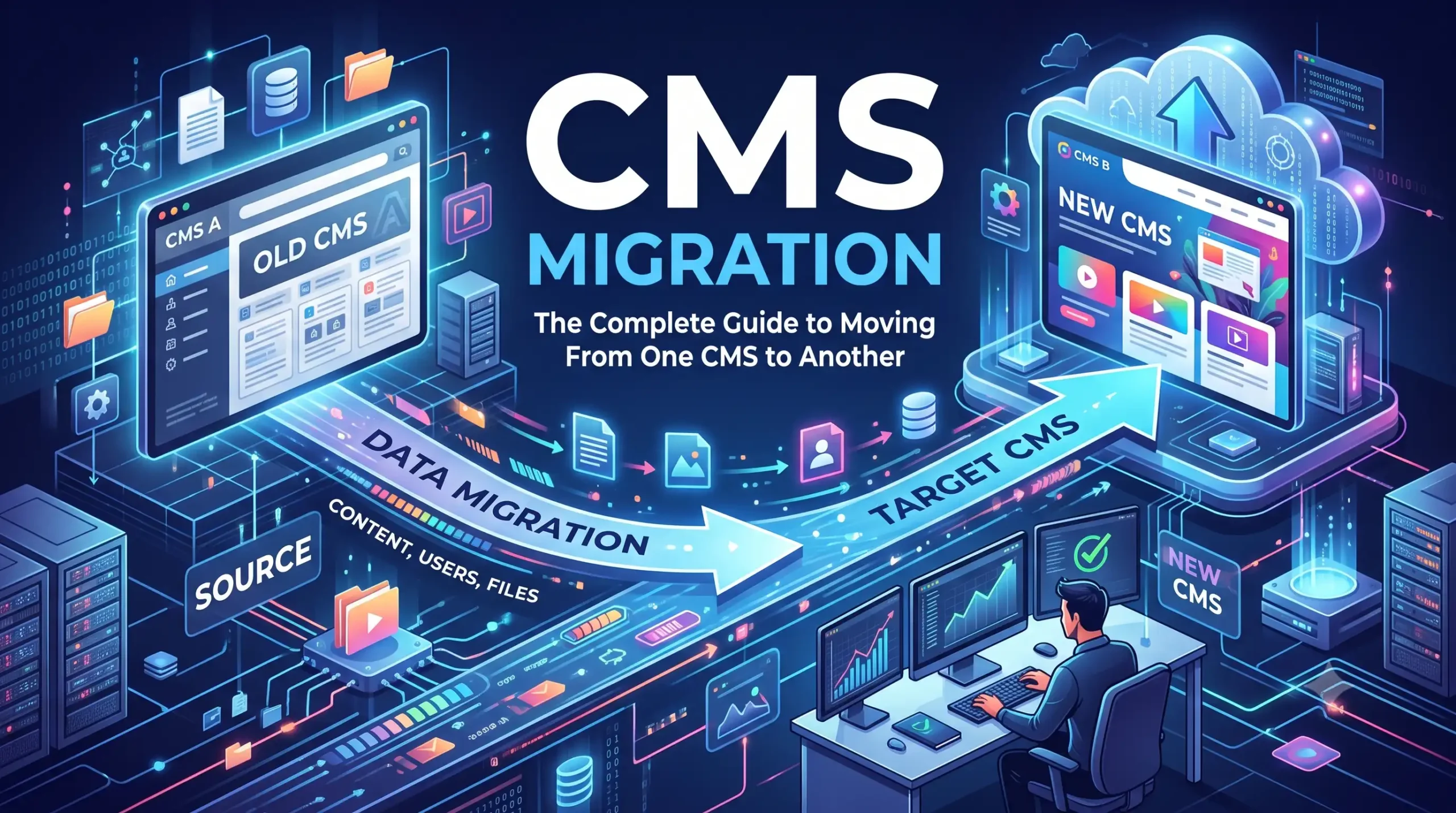
CMS Migration: The Complete Guide to Moving From One CMS to Another

Your content management system touches almost everything on your website. It controls how content is created, managed, published, maintained, and delivered to users. As a business grows, the CMS it started with often stops keeping up. Sometimes the problem is flexibility. Sometimes it’s performance, scalability, integrations, or the editorial workflow. Eventually the team starts asking whether it’s time to switch.
Making that switch is called CMS migration, and it’s the focus of this guide.
CMS migration is the process of moving a website from one content management system to another while preserving what matters: your important content, functionality, URLs, SEO signals, and user experience. A business might go from WordPress to Webflow, Drupal to WordPress, Joomla to WordPress, Magento to Shopify, or from a custom CMS to a modern platform. This kind of project is also called CMS replatforming or website replatforming, and you’ll see all three terms used for the same work.
One thing to get straight early: migrating a website to a new CMS is not just exporting content from one platform and importing it into another. That’s maybe a fifth of the job. The rest is planning, content mapping, technical implementation, SEO preservation, testing, redirects, analytics validation, and post-launch monitoring.
This guide covers the complete CMS-to-CMS migration process. You’ll see what to prepare before you start, what happens during the migration, and what to check after launch. If you’re wondering how to migrate a website from one CMS to another without losing traffic, you’re in the right place.
What Is CMS Migration?
CMS migration, sometimes called content management system migration, means transferring a website from one content management system to another. Depending on the site, the move may include:
- Website pages
- Blog posts
- Products
- Categories
- Tags
- Authors
- Images
- Videos
- Documents
- Custom fields
- SEO metadata
- Structured data
- Forms
- Internal links
- URLs
- Redirects
- Analytics configuration
- Third-party integrations
Some common examples are:
- WordPress to Webflow
- Drupal to WordPress
- Magento to Shopify
The technical steps differ from one platform pair to another. The objective doesn’t:
Move the website to the new CMS while maintaining content integrity, functionality, usability, and important search-engine signals.
How Does CMS Migration Work?
At a high level, a website CMS migration follows the same path no matter which platforms are involved. You audit the current site, plan the move, map the content from the old structure to the new one, export it, transform it where needed, and import it into the new CMS. Then you test, set up redirects, launch, and monitor.
That sequence is why the workflow is usually written as Audit → Plan → Map → Export → Transform → Import → Test → Redirect → Launch → Monitor. The rest of this guide takes each of those stages in turn.
Why Do Businesses Migrate to a New CMS?
There’s no single reason. Most businesses migrate because the current platform no longer fits their technical or business requirements. These are the five reasons we see most often.
1. Better Content Management
A newer CMS can make publishing simpler. Marketing teams can create and update pages without pulling in a developer for every small change. That tends to improve publishing speed, editorial workflows, content organization, team collaboration, and content governance. If your editors currently dread updating the site, this reason alone can justify a move.
2. Better Website Performance
Performance becomes a bigger concern as a website grows. A new platform may offer different hosting, caching, image optimization, rendering, or infrastructure options. Be careful with expectations, though. Changing CMS platforms does not automatically make a site faster. Measure performance before and after the migration so you know what really changed.
3. Improved Scalability
A website with hundreds or thousands of pages can outgrow the content architecture it started with. A new CMS may offer better content modeling, custom content types, structured collections, better API access, improved publishing workflows, and better integration capabilities.
4. Security and Maintenance
Legacy CMS installations often depend on outdated themes, plugins, libraries, or infrastructure. Moving to another platform can change the maintenance model. For example, a business might move away from a heavily plugin-dependent architecture toward a platform where more functionality is built into the core system, which means fewer things to patch and fewer things that can break after an update.
5. Better Integrations
Modern websites rarely stand alone. They often need to connect with:
- CRM systems
- Marketing automation
- Analytics
- Payment platforms
- Ecommerce systems
- Customer databases
- Personalization tools
- Search platforms
- Business intelligence systems
A CMS migration is a chance to redesign these integrations instead of copying the old architecture as it is. Some of the connections you’ve been carrying for years may not be needed anymore.
CMS Migration vs. Website Redesign
People often use these two terms as if they mean the same thing. They’re related, but they’re not identical.
- CMS migration changes the underlying content management platform.
- Website redesign changes the visual design, user interface, layout, or user experience.
A company can do a CMS migration only, a redesign only, or a CMS migration and redesign together. Combining them makes the project more complex, because content, URLs, templates, design, functionality, and technical SEO may all change at the same time. When something goes wrong, it’s hard to tell which change caused it. For larger websites, separating the major changes where practical makes troubleshooting far easier.
What Should You Audit Before a CMS Migration?
Before moving anything, create a complete inventory of the existing website. A migration should begin with discovery, not development. Teams that skip straight to building usually pay for it later, when they find a set of pages or a tracking script nobody remembered.
Website Inventory
Document the following:
- Total number of URLs
- Indexable URLs
- Page types
- Blog posts
- Products
- Categories
- Tags
- Authors
- Images
- PDFs
- Videos
- Forms
- Search functionality
- Third-party integrations
- Custom functionality
SEO Inventory
Record the following:
- Page titles
- Meta descriptions
- H1 headings
- Canonical URLs
- Robots directives
- XML sitemap
- Structured data
- Internal links
- Existing redirects
- Image alt text
Analytics Inventory
Record the following:
- Google Analytics configuration
- Google Search Console
- Conversion events
- Form tracking
- Ecommerce tracking
- Tag Manager configuration
- Advertising pixels
- CRM tracking
A migration should never accidentally reset the historical measurement system the business relies on. Losing two years of conversion data because a tracking tag didn’t make it across is a painful and completely avoidable mistake.
Step-by-Step CMS Migration Process
Here is the CMS migration process step by step, broken into thirteen practical phases.
Phase 1: Define Migration Goals
Before selecting tools or exporting data, decide why the business is migrating. Common goals include:
- Improve content management
- Improve scalability
- Reduce maintenance
- Improve performance
- Replace legacy technology
- Improve integrations
- Support international expansion
- Improve ecommerce functionality
Then make the objectives measurable. For example:
- Goal: Reduce publishing time.
- Measurement: The average time required to publish a new landing page before and after migration.
Without a number attached, “better” is just an opinion, and it’s hard to tell after launch whether the project worked.
Phase 2: Audit the Existing Website
Crawl the existing website and export the important data. At minimum, capture the following:
| Data | Why It Matters |
|---|---|
| URL | Migration and redirect mapping |
| Title | SEO preservation |
| Meta description | Search-result information |
| H1 | Content structure |
| Canonical | Indexation signals |
| Status code | Technical health |
| Internal links | Site architecture |
| Organic traffic | Migration baseline |
| Backlinks | URL priority |
| Conversions | Business importance |
The audit should identify not only which pages exist but which pages actually matter. A page that receives organic traffic, earns backlinks, or drives conversions deserves particular attention. Many older sites also carry a lot of dead weight, such as thin pages, duplicates, and outdated posts, and a migration is a good moment to decide whether those pages should be moved, merged, or retired.
Phase 3: Build the Content Migration Map
The source CMS and the destination CMS may use completely different content models. Here’s a simple example.
Old CMS: Blog Post
- Title
- Author
- Category
- Tags
- Featured image
- Content
- SEO title
- Meta description
New CMS: Article
- Name
- Author reference
- Topic
- Image
- Rich text
- SEO fields
Create a field-level mapping before importing anything. This prevents data from being lost or dropped into the wrong field. Notice in the example above that “Category” and “Tags” become a single “Topic” field, so you’d need to decide up front what happens to the tags.
Phase 4: Export Existing Content
Export all the required content from the existing CMS. Depending on the platform, this might involve:
- XML
- CSV
- JSON
- SQL
- API
- CMS export tools
- Custom scripts
Don’t export only the visible page text. Also consider:
- SEO metadata
- Authors
- Categories
- Tags
- Custom fields
- Images
- Files
- Product information
- Publication dates
Webflow’s current WordPress migration guidance, for example, describes exporting WordPress content and mapping the imported fields into CMS collections.
Phase 5: Build the New CMS Structure
Before importing everything, configure the destination CMS. Define:
- Content types
- Fields
- Taxonomies
- Templates
- URL structures
- Authors
- Categories
- Media handling
- SEO fields
- Navigation
- Search
- Forms
The new CMS shouldn’t simply reproduce every weakness of the old one. Migration is an opportunity to improve the content architecture, so take it.
Phase 6: Import and Validate Content
Import the content into the new CMS, then compare the source and the destination. Check:
- Titles
- Body content
- Images
- Links
- Authors
- Categories
- Tags
- Publication dates
- Metadata
- Custom fields
A successful import does not mean the migration is complete. Imported data needs validation. A practical habit is to do a trial import with a small batch of pages first, fix whatever breaks, and only then run the full import.
Phase 7: Create the URL Redirect Map
URL mapping is one of the most important parts of CMS migration. Create a spreadsheet like this:
| Old URL | New URL | Redirect |
|---|---|---|
/old-services/ |
/services/ |
301 |
/blog/old-post/ |
/blog/new-post/ |
301 |
/about-company/ |
/about/ |
301 |
Where URLs change permanently, implement the appropriate permanent redirects. The objective is a direct path from each old URL to the most relevant new URL. Avoid unnecessary redirect chains, where one old URL hops through two or three others before landing on the final page.
Redirect mapping usually takes longer than people expect, especially on sites with thousands of URLs. Start it early and don’t leave it for the last week.
Phase 8: Rebuild SEO Configuration
The new CMS needs to reproduce the important SEO functionality of the old one. Check:
- Title tags
- Meta descriptions
- Canonical URLs
- Robots directives
- XML sitemap
- Structured data
- Breadcrumbs
- Open Graph data
- Image alt text
Never assume the SEO settings from the old CMS will transfer automatically. Current migration guidance from Webflow and other migration resources similarly emphasizes redirects, metadata, sitemap configuration, and SEO validation.
Phase 9: Update Internal Links
Internal links may still point to the old URL structure after migration. Crawl the new website and look for:
- Broken links
- Old URLs
- Redirected URLs
- Staging URLs
- Incorrect domains
- Missing links
Where possible, update internal links so they point directly to the final URLs instead of relying on redirects to carry visitors the rest of the way.
Phase 10: Test the Staging Website
Before launch, test the website in a staging environment. Cover each of these areas.
Content testing
- Text
- Images
- Videos
- PDFs
- Blog posts
- Products
SEO testing
- Titles
- Meta descriptions
- Canonicals
- Robots directives
- Sitemap
- Structured data
- Redirects
Functionality testing
- Forms
- Search
- Login
- Checkout
- CRM integrations
- APIs
UX testing
- Desktop
- Tablet
- Mobile
- Navigation
- Accessibility
Performance testing
- Page load performance
- Core Web Vitals
- Image optimization
- JavaScript
- CSS
- Server response
Phase 11: Prepare for Launch
Create a launch checklist. Before switching to the new CMS:
- Back up the existing website
- Freeze content if necessary
- Complete the final content migration
- Verify redirects
- Verify analytics
- Verify forms
- Verify DNS configuration
- Verify robots.txt
- Verify the sitemap
- Verify canonical URLs
- Confirm rollback procedures
The rollback plan matters more than it sounds. If something serious goes wrong on launch day, everyone should already know who makes the call and how the old site comes back.
Phase 12: Launch the New CMS
After final validation, launch in this order:
- Publish the new website.
- Activate the production domain.
- Confirm redirects.
- Verify robots.txt.
- Verify the XML sitemap.
- Test important URLs.
- Test forms.
- Test conversions.
- Verify analytics.
- Begin post-launch monitoring.
Phase 13: Monitor After Migration
The work doesn’t end when the website goes live. Monitor:
- Organic traffic
- Search Console
- Indexed pages
- Crawl errors
- 404 pages
- Redirects
- Search queries
- Rankings
- Conversions
- Server logs
Search engines need time to crawl and process changed URLs. Google notes that significant site changes can cause temporary fluctuations while URLs are recrawled and reindexed. A small dip in the first few weeks isn’t automatically a sign of failure, but a steady decline is a signal to investigate.
Things to Consider When Migrating a CMS
Beyond the step-by-step process, a few questions are worth settling before you commit to a platform or a timeline. These are the main things to consider when migrating a CMS.
- Does the new CMS actually solve your problem? Check it against the goals you defined in Phase 1, not against a feature list.
- How will content be modeled? A platform with rigid content types can create new problems if your content is varied.
- What happens to URLs? Some platforms force a URL structure. Find out early whether yours can match the old one.
- Who will own the project? Migrations touch marketing, development, SEO, and sometimes legal and sales. Someone needs to coordinate.
- What will your team need to learn? Plan training time for editors, not only developers.
- What is the content freeze plan? Decide how new content is handled while the migration is in progress.
CMS Migration Best Practices
These CMS migration best practices come up in almost every successful project:
- Start with an audit and a written plan before any development begins.
- Set measurable goals and record baseline numbers before you change anything.
- Keep URLs the same wherever it makes sense, and redirect the rest one to one.
- Validate every stage, from export to import to staging, rather than only checking at the end.
- Keep the old site backed up and ready for rollback.
- Limit how many other changes you make at the same time.
- Monitor closely for at least the first few weeks after launch.
CMS Migration Checklist
Use this CMS migration checklist to keep each stage on track.
Before Migration
- Define migration goals
- Audit the current CMS
- Crawl the website
- Export URLs
- Record organic traffic
- Record conversions
- Record backlinks
- Audit metadata
- Audit canonical URLs
- Audit structured data
- Audit integrations
- Back up the website
- Create content mapping
- Create URL mapping
During Migration
- Build the new CMS structure
- Export content
- Transform data
- Import content
- Import media
- Configure templates
- Configure metadata
- Configure canonical URLs
- Implement redirects
- Update internal links
- Configure analytics
- Configure forms
- Configure integrations
Before Launch
- Crawl the staging website
- Test redirects
- Test 404 pages
- Check canonical URLs
- Check robots.txt
- Check the sitemap
- Check structured data
- Check metadata
- Check internal links
- Test mobile
- Test performance
- Test forms
- Test conversions
After Launch
- Verify the production site
- Submit the sitemap
- Monitor Search Console
- Monitor organic traffic
- Monitor indexing
- Monitor 404 errors
- Check redirects
- Check rankings
- Check conversions
- Crawl the new website
- Fix discovered issues
Common CMS Migration Mistakes
Most migration problems trace back to a short list of avoidable mistakes.
Forgetting URL Mapping
Changing URLs without planning redirects creates broken paths and lost search signals.
Losing SEO Metadata
Titles, descriptions, canonicals, and structured data can disappear during a content import if they aren’t explicitly mapped.
Forgetting Images
Images are part of the website’s content ecosystem and should be included in the migration inventory.
Leaving Staging Restrictions Active
Check the production website for unintended noindex directives or crawler restrictions carried over from staging. This one is easy to miss and can quietly keep an entire site out of search results.
Ignoring Internal Links
Old internal links can create unnecessary redirects or broken URLs.
Migrating Without a Backup
Always maintain a reliable backup and a rollback plan.
Changing Everything at Once
A CMS migration combined with a domain change, a redesign, URL restructuring, and a major content rewrite creates too many variables to troubleshoot at the same time.
Do You Need CMS Migration Services?
Some migrations are small enough for an in-house team. A brochure site with a few dozen pages and a straightforward content structure is often manageable with the right export and import tools.
Larger or more complex projects are a different story. If you have thousands of URLs, an ecommerce catalog, custom functionality, several integrations, or strict SEO requirements, professional CMS migration services can save a lot of risk. A good provider will handle the audit, the content mapping, the redirect plan, testing, and post-launch monitoring, so your team isn’t learning all of it for the first time on a live site.
When comparing CMS migration services, ask how they handle SEO preservation, what their testing process looks like, and how they plan for rollback. Vague answers to those three questions are a warning sign.
How Much Does CMS Migration Cost?
CMS migration costs vary significantly. The main factors include:
- Website size
- Number of pages
- Number of products
- CMS platforms
- Custom functionality
- Integrations
- Content volume
- URL changes
- SEO requirements
- Design requirements
- Ecommerce requirements
- Internationalization
- Testing requirements
A small business website and a large ecommerce platform should not be estimated with the same migration model.
How Long Does CMS Migration Take?
There’s no universal CMS migration timeline. A small website with a simple content structure is substantially easier to migrate than a large website with thousands of URLs, multiple content types, custom functionality, and third-party integrations.
The most useful way to estimate the project is to assess these factors together:
Pages + content types + integrations + URL changes + custom functionality + testing requirements.
Frequently Asked Questions About CMS Migration
What is CMS migration?
CMS migration is the process of moving a website from one content management system to another while preserving its content, functionality, URLs, SEO signals, and user experience.
How do I migrate a website from one CMS to another?
Start by auditing the existing site and setting goals. Then map the content, export it, build the new CMS structure, import and validate the content, set up redirects, rebuild the SEO configuration, test on staging, launch, and monitor the results afterward.
Will a CMS migration hurt my SEO?
It doesn’t have to. Most ranking losses come from missing redirects, lost metadata, or leftover noindex settings. With careful planning and testing, you can keep the impact small, although temporary fluctuations after launch are normal.
What is the difference between CMS migration and CMS replatforming?
In everyday use, the two terms mean the same thing. Both describe moving a website to a different CMS platform. Website replatforming is sometimes used for larger projects that also involve infrastructure or architecture changes.
Should I redesign my website during a CMS migration?
You can, but it adds complexity. If you can separate the redesign from the migration, troubleshooting is much easier, especially on larger sites.
What should I check after migrating to a new CMS?
Verify the production site, submit the sitemap, and check redirects, robots.txt, and analytics. Then monitor Search Console, organic traffic, indexing, 404 errors, rankings, and conversions.
Final Thoughts
A successful CMS migration is a combination of content migration, technical implementation, SEO preservation, quality assurance, and post-launch monitoring. The process should begin with an audit and a migration plan rather than with development.
The basic workflow is:
Audit → Plan → Map → Export → Transform → Import → Test → Redirect → Launch → Monitor
When each stage is documented and validated, the business has a much clearer path from its existing CMS to a new platform.
The goal isn’t simply to launch a website on a different CMS. It’s to move while keeping the content, functionality, URLs, SEO signals, analytics, and user experience your existing website has built up over time.